
DPI vs. Speed: Finding the Perfect Balance in Your UV Printer Production Workflow
Struggling to find the perfect balance between DPI and speed in your UV printer workflow?
If you've ever experienced blurry images or slow production times, you're not alone. Many professionals face this challenge when trying to optimize print quality without sacrificing volume. Finding the right balance between DPI (dots per inch) and printing speed is essential for delivering top-notch results efficiently. Let"s dive into how you can master this balance and maximize your UV printer"s potential.
Understanding the Basics: DPI and Speed in UV Printing
What Is DPI and Why Does It Matter?
DPI stands for dots per inch. It measures the resolution of your print job, affecting the sharpness and detail of the final image. Higher DPI means more dots, which generally translates to better quality, especially for intricate designs or photos. Think of DPI as the detail level—more dots create smoother images.
Speed: The Other Side of the Coin
Speed refers to how quickly your UV printer can produce prints. Push it too fast, and quality could suffer; go too slow, and your volume drops. Achieving the right speed ensures you meet deadlines without compromising on clarity or durability. It"s a balancing act, especially when working with varied project requirements.
Why You Need to Find the Right Balance
Imagine you have a deadline to meet but also want a high-quality, detailed graphic. You might opt for high DPI, but that can significantly slow down your production. On the flip side, if you prioritize speed, the output could look pixelated or blurry. The goal is to strike a balance that satisfies both quality and efficiency.
How to Optimize Your UV Printer Workflow
Assess Your Project Needs
- Detail vs. Volume: For intricate artwork, prioritize higher DPI. For bulk printing with less detail, lower DPI and higher speed work better.
- Material Types: Different substrates might require different settings for optimal results. Textured surfaces may need a lower DPI for better adhesion and appearance.
Think of it like cooking—sometimes you need high heat for a quick sear, sometimes a slow simmer for perfection. Adjust your machine settings based on your project's goals.
Experiment with Settings
Don't just guess—test. Run small batches at different DPI and speed settings. Check the results for clarity, color accuracy, and adhesion. Record which settings produce the best results for your specific materials and designs. Over time, you'll develop a "recipe" for optimal production.
Utilize Technology and Software
Modern UV printers come with software that can help optimize printing parameters. Use pre-set profiles catering to different media types. Some advanced printers even offer auto-adjust features that tweak print speed and resolution dynamically.
Practical Tips for Finding the Balance
- Set Your Priority First: Decide if the project demands high quality or volume and adjust accordingly.
- Use High-Quality Materials: Premium substrates can sometimes allow for higher DPI without sacrificing speed.
- Keep Your Equipment Maintained: Clean print heads regularly to ensure consistent quality at higher DPI settings.
- Leverage Customer Feedback: Understand what your clients care about most—sharpness or quick delivery—and tailor your settings.
Say you're chatting with a friend who runs a small shop. They compromise on DPI for most jobs but switch to higher settings for special orders. That flexibility makes a difference in both their client satisfaction and workflow efficiency.
Real-Life Example: Balancing DPI and Speed in Action
I recently worked with a client who was printing promotional banners. They wanted sharp images but had tight deadlines. We experimented with different settings — starting from standard DPI and gradually increasing it. Surprisingly, we found that a moderate DPI—around 300—delivered excellent clarity for their large-format prints, while doubling their output speed. The result? Happy clients and a more profitable workflow.
Explore the Latest Tools and Equipment
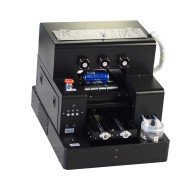
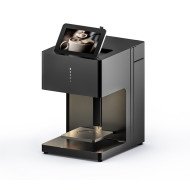
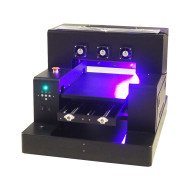
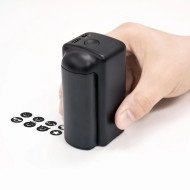
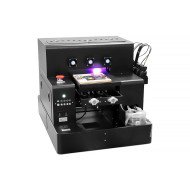
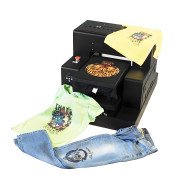
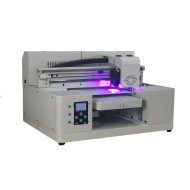
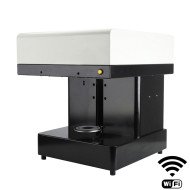
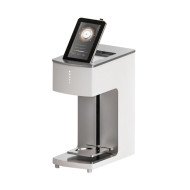
If you"re looking to upgrade or streamline your process, consider innovative products like the Spot UV Printing Machine. It offers precise control over resolution and speed, helping you get the perfect balance every time. Investing in advanced machinery can reduce trial-and-error time and boost overall efficiency.
FAQs About DPI vs. Speed in UV Printing
1. How does increasing DPI affect printing speed?
Generally, higher DPI reduces speed because the printer needs more time to lay down additional dots for detailed images. Adjusting DPI is often a trade-off between quality and output volume.
2. Can I print fast with high DPI?
It"s possible with certain high-end UV printers that feature speed optimization tech. However, for most setups, increasing DPI at high speeds can lead to blurred or pixelated prints. Testing your machine"s limits is key.
3. What settings are optimal for small runs and large batches?
For small, detailed jobs, prioritize higher DPI. For bulk printing, lower DPI with increased speed ensures efficiency without sacrificing too much quality.
4. How do material types impact DPI and speed choices?
Textured or rigid surfaces might require lower DPI for better adhesion and clarity. Smooth, glossy materials can handle higher DPI for sharper images, but at slower speeds.
5. Are there any tools that help automate balancing DPI and speed?
Yes, many modern UV printers come with smart software profiles, auto-tuning features, and presets tailored to different materials and jobs. These tools can make finding the right balance easier and more consistent.



Leave a Comment